Table of Contents
Disclosure: This article contains affiliate links. If you purchase through these links, we may earn a commission at no extra cost to you.
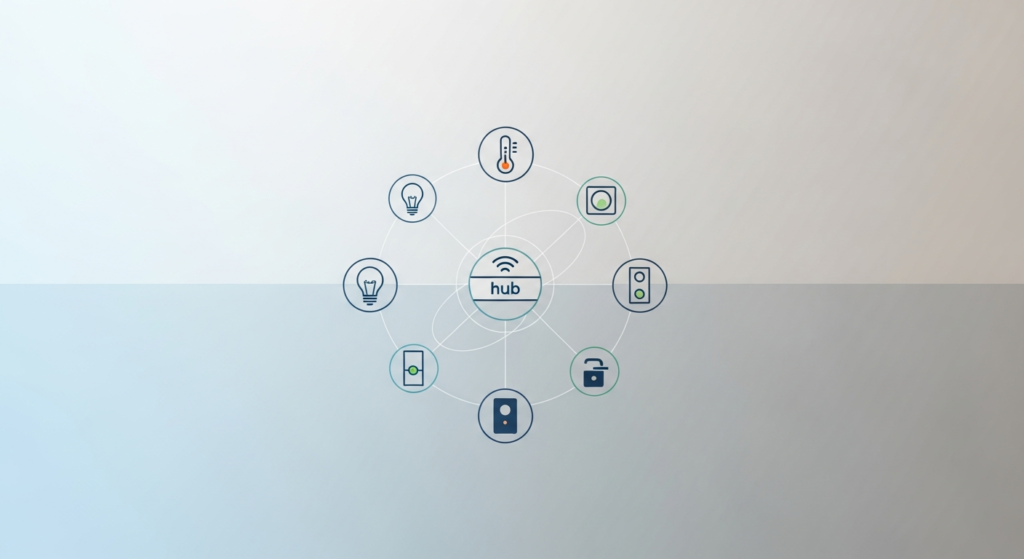
Pick a smart home hub by the devices and routines you want to run, not by a generic winner badge. Start with the app your family already uses every day. Check the radio signals your gear needs, and verify what still works if the internet goes down.
This is a spec-based buying guide, not a hands-on lab test. All product details come from official maker guides. We do not rank one hub as best for every home. Check the exact model number and supported devices before you buy.
Smart home hubs: start with the daily job
Write down one real routine before you shop. Maybe you want a bedside button to shut off living room lamps, or a door sensor to light up the hall. List every device in that chain. A routine only works if the hub can see the trigger and control the light.
For example, you might link a motion sensor to warm 2700K LED strip lights from LightingWill under your hallway console or kitchen cabinets. Or you might set a night scene that dims the bedroom lamps around a bed dressed with breathable cooling sheets from Breescape. Make a short table with columns for device model, current app, target app, and radio type. See our smart home device planning guide to map out your rooms.
Separate Matter support from the network radio
Google notes that Matter runs locally over Ethernet, Wi-Fi, and Thread networks. Read Google’s Matter explanation for the basic rules.
Treat the phone app and the wireless radio as two separate questions. Check which app adds the device, which hub links it to your router, and which controls show up in the app. A Matter badge on a box does not mean every custom brand setting appears in every app.
Check what gear you already own before buying a new box. A smart speaker or display in your kitchen may already have the radio you need. On the flip side, never assume an older voice speaker includes a Thread radio without checking its model spec sheet.
Google Home: check the exact hub model
Google lists the Nest Hub (2nd gen), Nest Hub Max, and Nest WiFi Pro as hubs with built-in Thread border routers. See Google’s compatible-device guidance to check your hardware.
If your home already runs on Google Home, start with this list instead of adding a new app. Set your display on an entryway table or kitchen organizer shelf from Best Choice Products where everyone can see and tap the screen. Check that the Google Home app supports the exact device controls you want.
Run a quick family test once you pair your first device. Name the room clearly, invite another adult in your home, and let them test the button on their phone. If only the person who set it up can use it, simplify the layout before adding more gear.
Apple Home: compare hub roles, not speaker sound
Apple explains that a home hub lets you control devices away from home, share access, and run routines. Check Apple’s home-hub setup guide for requirements.
Apple also states that HomePod and HomePod mini work as home hubs on their own once set up. Read Apple’s setup instructions for step-by-step help.
If your household uses iPhones, check your Apple Home app first. Compare Apple TV and HomePod models by their exact generation and radio list. Not every Apple TV box includes a Thread radio, so verify the part number before buying.
Apple notes that recent iPhones can control some Matter devices directly, though a home hub is still best for shared routines. See Apple’s current Matter pairing guidance for details. Write down whether you need remote control and shared family access before skipping a hub.
Homey Pro: check each device integration
Homey lists Matter, Thread Border Router, Zigbee, and Z-Wave inside the Homey Pro box. Review Homey Pro’s connectivity documentation for the full list.
Homey also states that Homey Pro runs tasks locally and uses the cloud only when needed. Read Homey’s local-first description on the maker page.
Having four radios in one box helps when you own many brands, such as Zigbee sensors and smart dimmers wired to woven rattan pendant lights from Rowabi. Still, search the Homey app store for each exact device model before you buy. Check whether the integration is built by the brand or by a volunteer, and see if it needs cloud login.
Compare hubs with a simple checklist
| Your need. | What to verify. | Warning sign. |
|---|---|---|
| Keep current devices. | Exact model support and app controls. | Only a vague brand logo on the box. |
| Family phone access. | Guest invite and role settings. | Everyone must share one password. |
| Internet outage behavior. | Test each light and sensor rule offline. | Maker does not explain cloud limits. |
| Future hub swap. | Backup tool and reset instructions. | No way to save your setup file. |
Use this table to cross off bad fits before you compare screen sizes. If a hub cannot control the devices you already own, a pretty screen will not fix the problem.
Budget for the full setup, then test it
List the full cost before ordering: the hub, any extra bridge, wall mounts, and optional cloud plans. Compare complete kits rather than just the base box price.
To check the wall-mount controller covered in this guide, see the Amazon Echo Hub listing on Amazon. Use the page to check current bundle contents and supported Alexa accessories.
Start with a small test in one room before moving your whole home over. Write down device names, setup codes, and who owns the main account. Unplug your internet modem briefly to see if your local light switches still work. Never test unproven routines on door locks or heaters.
Keep a printed recovery sheet with your pairing codes in a drawer. Read our beginner automation guide to build clean daily routines. If you also want home alarms, check our security-system buying considerations rather than using a light hub as an alarm.
Questions to answer before you order
Do you need a new hub at all?
Not always. First check what is missing in your current app. If you only need cleaner room names or a better wall switch, a new hub will not solve that. Ask the device maker which hub and radio path your gear needs.
What should guide your final choice?
Pick the hub that connects your current gear with the fewest extra bridges and apps. Save links to the support pages you checked. If you revisit the Amazon Echo Hub product listing, verify your accessory list first. The right hub is the one your whole household can use without help.
As an Amazon Associate I earn from qualifying purchases.
Get the 4casahome digest
Honest reviews and no-hype guides — straight to your inbox. No spam, unsubscribe anytime.
Some links in our articles are affiliate links. See our full Affiliate Disclosure for details.


Join the conversation